
Oracle GoldenGate on OCI offers robust capabilities for data replication across various technologies, but it’s crucial to implement security best practices for both your deployment and the underlying data. Below are key recommendations and configurations to help secure your environment.
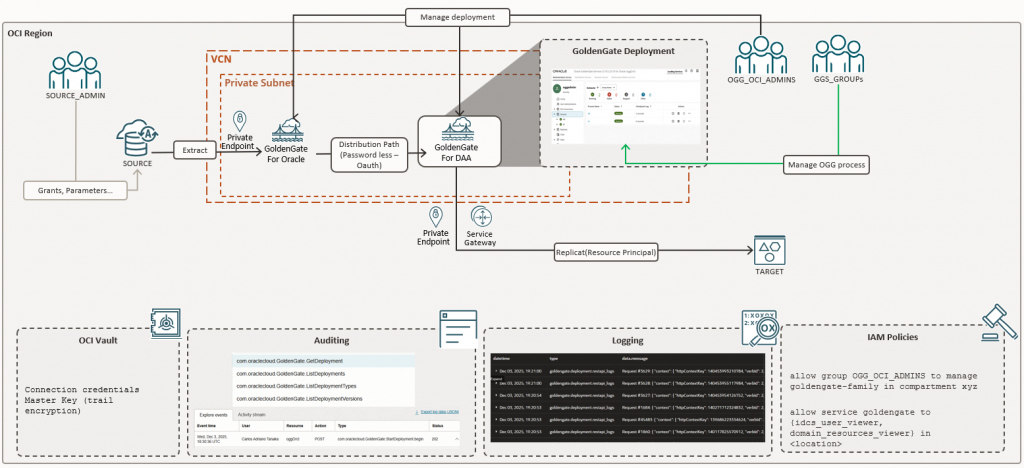
Let’s start with our architecture where we can see the big picture:
Identity
Groups
To start, we can discuss about the roles in a GoldenGate environment, we usually have a scenario where one person (or group) manages the service (in OCI) and process (extract, replicat, etc) inside GoldenGate deployment, but here we are talking about security so we could split it into three groups:
- SOURCE/TARGET_ADMIN – Who own the source/target setup, usually here we are talking about the DBA (for source and target) or Cloud Admin when we are dealing with Big Data targets (OCI Object Storage, Kafka…)
- OGG_OCI_ADMIN – The group who can deploy and manage the OCI GoldenGate Instance and resources like connections and assignments, it doesn’t need to have access to source/target or deployment itself.
- GGS_GROUPS – The group that manage inside GoldenGate process, who will be creating and maintaining extracts, replicats, etc within the newer service and on-premises versions, you can federate this group within OCI Domains we will dive more into it in the next topics.
IAM Integration
As told before, Oracle GoldenGate supports identity federation within OCI Domains:
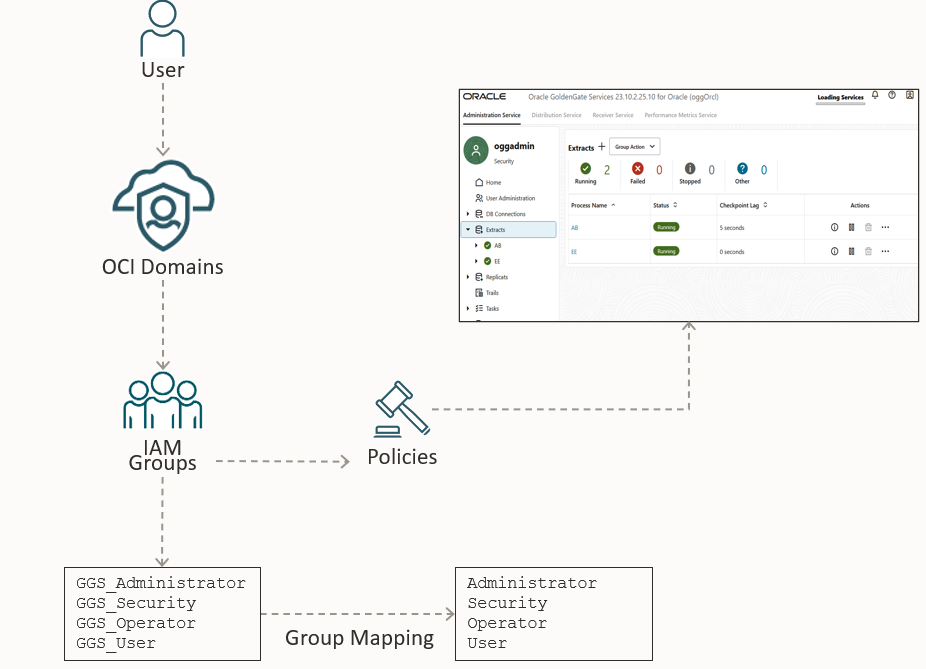
In this case you can map OCI Groups with GoldenGate groups and even enable MFA, if you are using on-premises version you can refer to this very good article that show how to setup it https://blogs.oracle.com/dataintegration/goldengate23ai-integration-with-oci-iam, In the service we can setup it using the OCI deployment interface while creating the deploy:
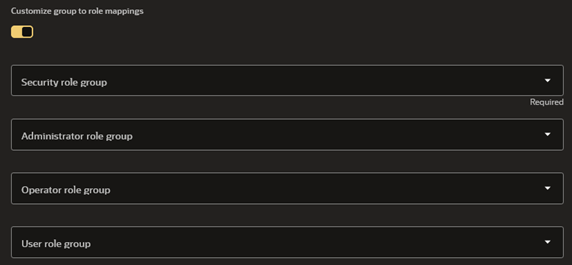
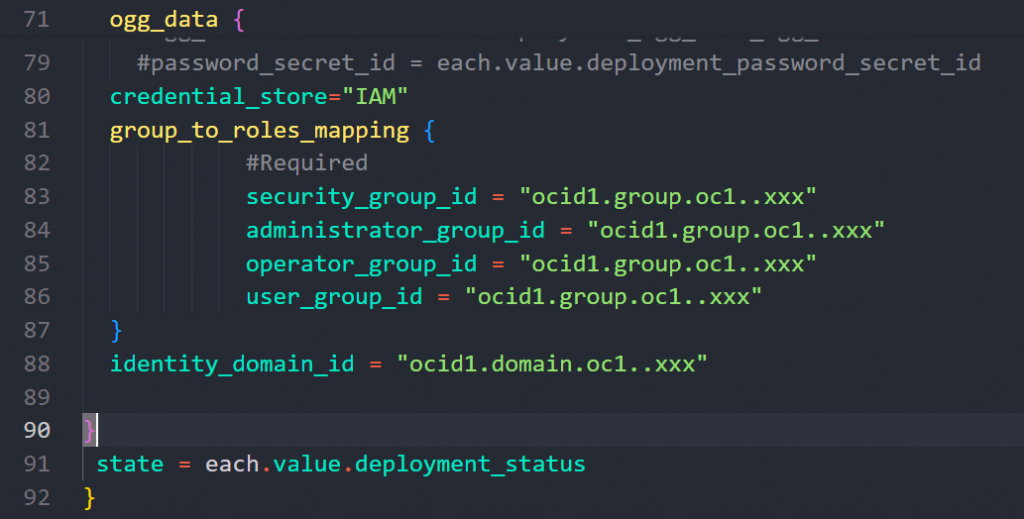
Or if you are using terraform you can define credential_store to IAM and specify the groups in the group_to_roles_mapping variable:
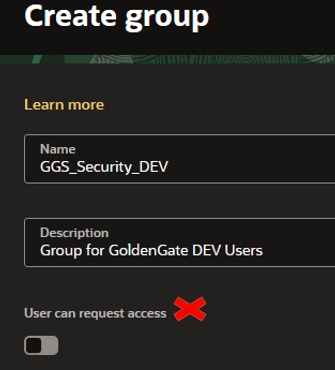
To create the groups, you should go to Identity > Domains > Your_Domain > User Management > Groups.
Tip: Do not select the “User can request access” option when setting up groups.
To better understand each role you can use this table:
| OCI IAM Group | GoldenGate Role | Purpose |
| GGS_Administrator | Administrator | Grants full access to the user, including the ability to alter general, non-security related operational parameters and profiles of the OCI GoldenGate deployment service. |
| GGS_Security | Security | Grants administration of security related objects and invoke security related service requests. This role has full privileges. |
| GGS_Operator | Operator | Allows users to perform only operational actions. Operators cannot alter the operational parameters or profiles of the OCI GoldenGate deployment services. |
| GGS_User | User | Allows information-only service requests, which do not alter or effect the operation of either the OCI GoldenGate deployment services. |
Assign users to the appropriate group based on their responsibilities. For example, a user who can create processes but should not change encryption profiles should be added to the GGS_Operator group. Greater privileges can be granted by using the GGS_Administrator or GGS_Security groups as needed.
Policies
We can split the policies under two categories:
User management:
Polices to users that will manage OCI GoldenGate service, like create the deployment, assign connections, apply patchs and so on, here an example of it:
allow group OGG_OCI_ADMINS to manage goldengate-family in compartment xyz
Service Policies
Grant the GoldenGate service permissions to interact with other OCI services (e.g., Logging, Vault, Domains). Example:
allow service goldengate to {idcs_user_viewer, domain_resources_viewer} in <location>
Data Access / Connections
To allow connections to your source/target you need to create an OCI resource called Connection, this connection could be Dedicated or Shared, and the passwords should be stored in a OCI Vault, besides that if your source/target supports advanced security parameters, you can use the advanced option to enter it (its available for a lot of connections type).
One important addition to the service, is the capability to use a Resource Principal connection, in this case there is no user or password involved!
For this to work you need to setup an dynamic group and the required policies:
ALL {resource.type = ‘goldengatedeployment’, resource.compartment.id = ‘compartment_ocid’}
allow dynamic-group to manage object-family in compartment XYZ Protecting OCI Resources
OCI offers a way to lock resources update and delete, here we are talking about OCI GoldenGate but it could be applied to a lot of OCI resources, you can do that from terraform, OCI APIs and OCI CLI:
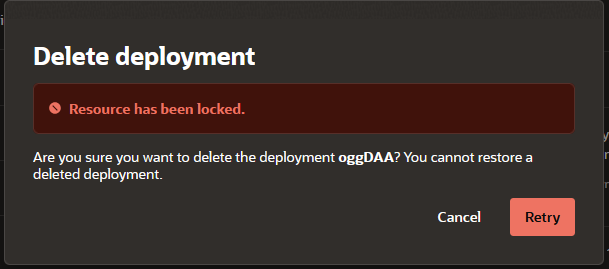
oci goldengate deployment add-lock --deployment-id ocid1.goldengatedeployment… --type FULL/DELETEIf you define it to FULL the resource will be locked to any type of update, if you try to shut down, add/remove tags, update any parameter it will fail with Resource has been locked message.
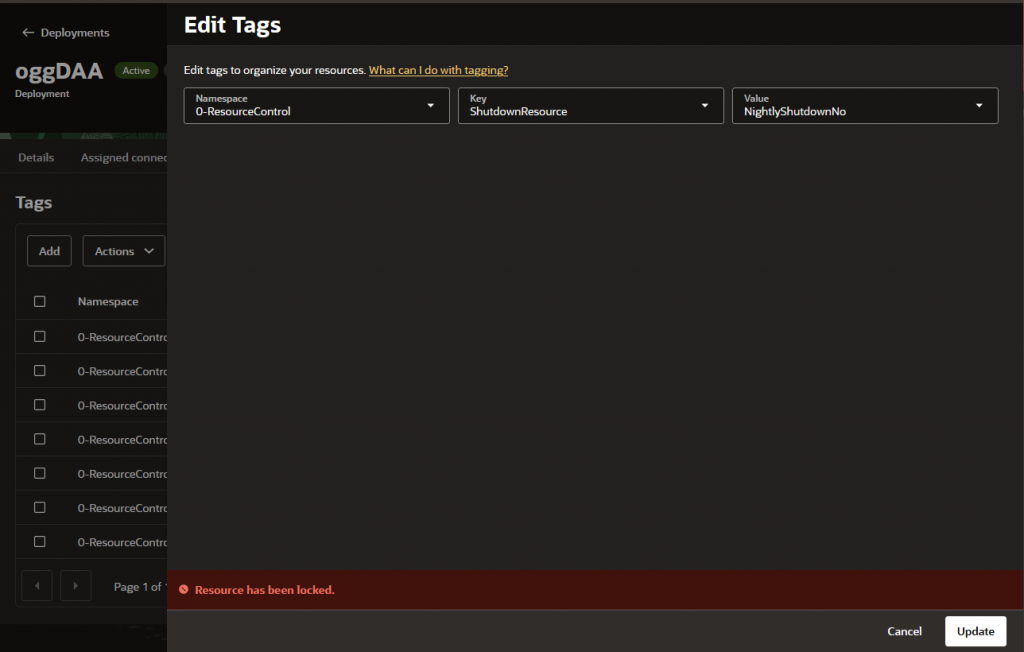
If you define it to DELETE, only delete operations will be blocked.
OCI Events
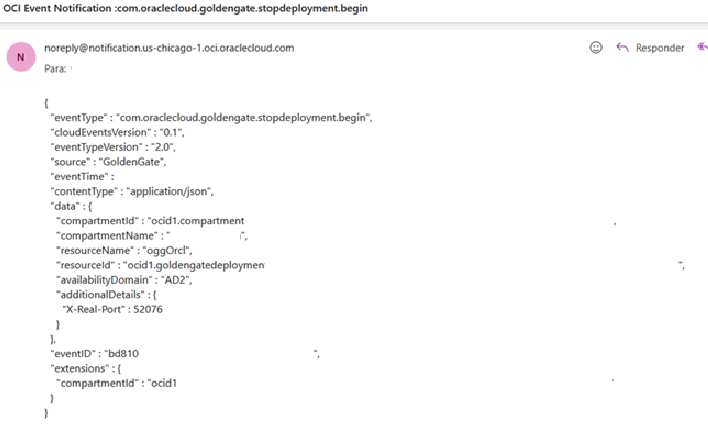
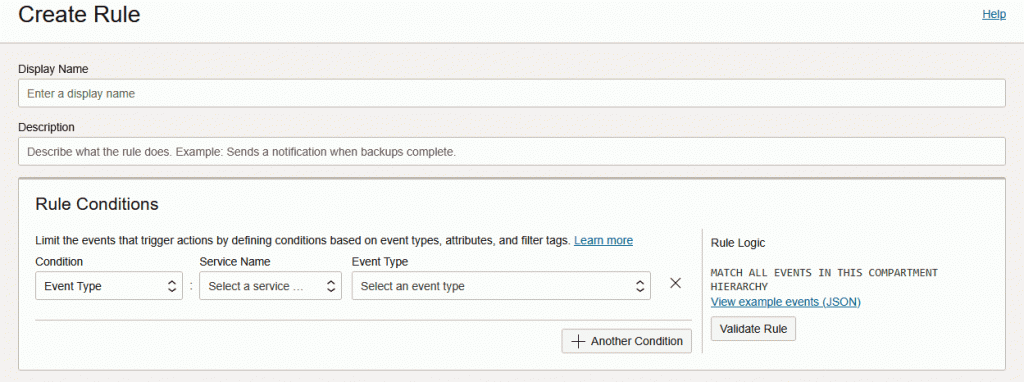
Because OCI GoldenGate is a cloud developed service, we can integrate it with other OCI Services, we can use OCI Events (Observability & Management > Events Service > Rules) to fire alerts when specific action occurs, it’s helpful to monitor get when someone is trying to delete your deployment for example.
Logging
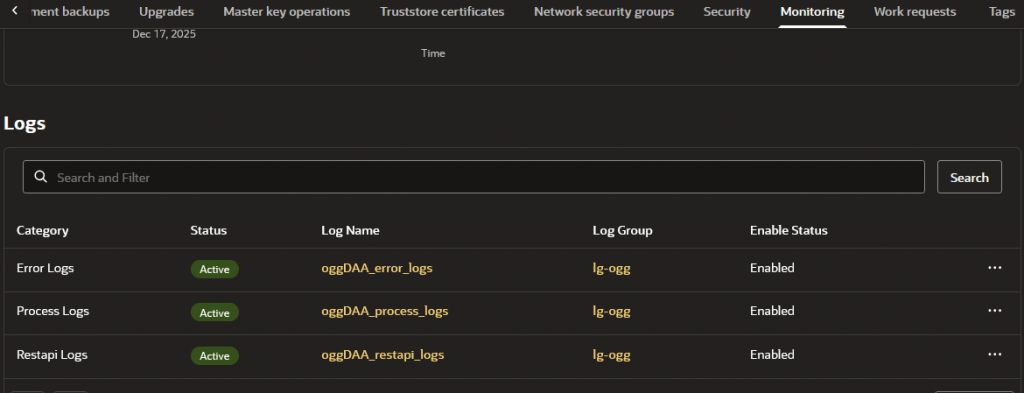
OCI GoldenGate produces three logs:
- Error Logs is the same of ggserr.log where you can see warnings, errors and so on
- Process Logs where you will find extract, replicat, services entries.
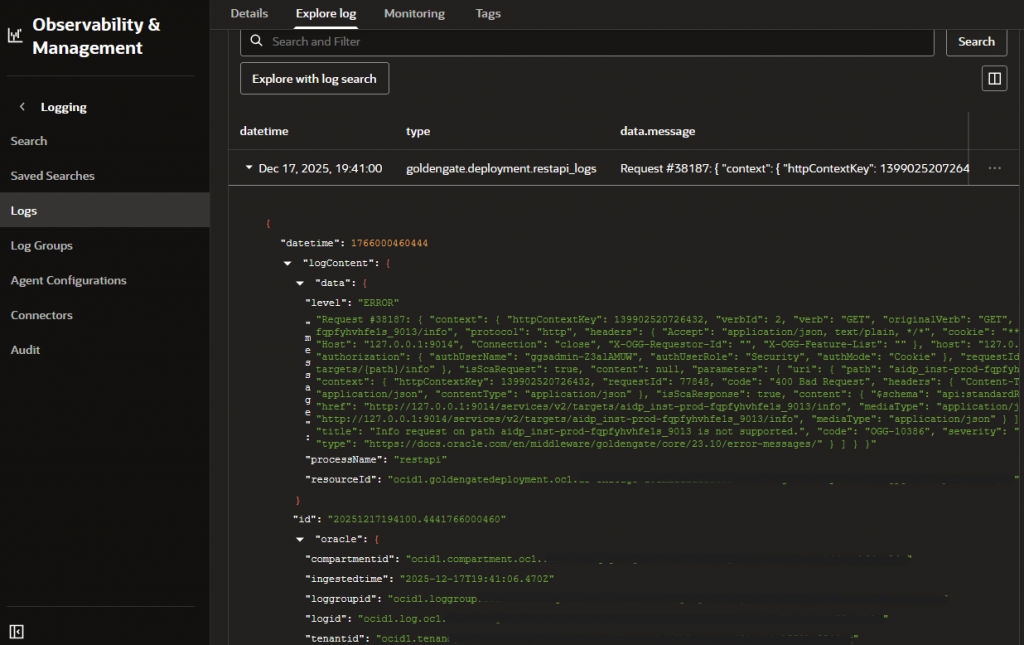
- RestAPI Logs – Calls to your deployment APIs
You can enable it under your deployment page in Monitoring > logs tab:
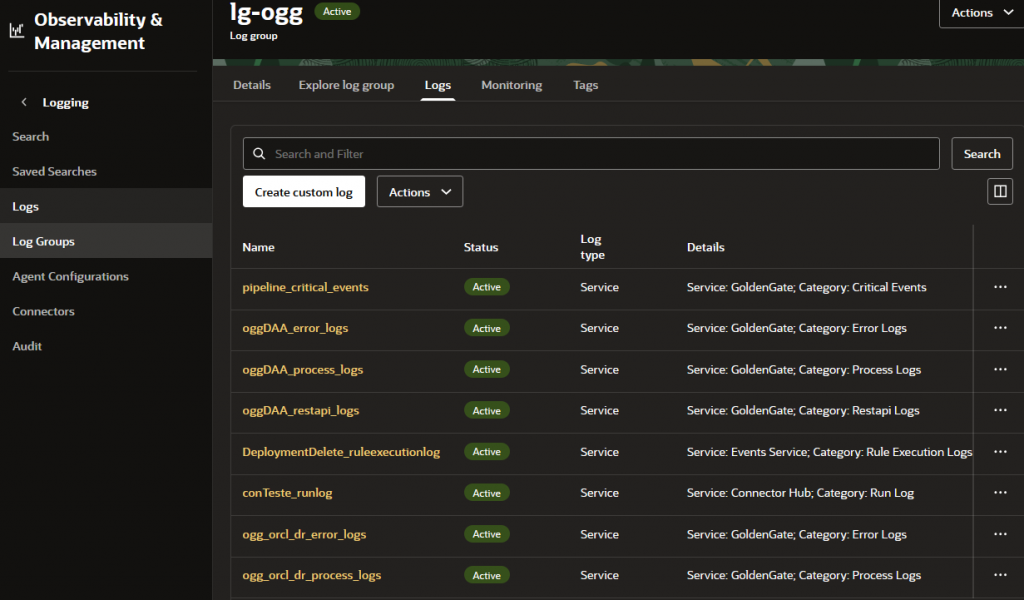
And to read it you can go to Observability & Management > Logging > Log Groups:
Auditing
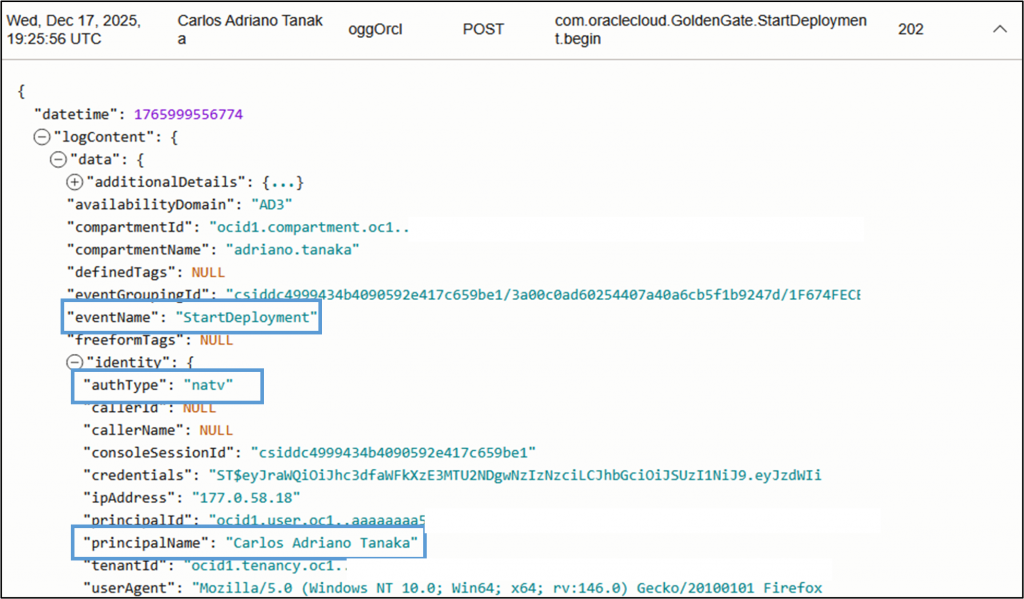
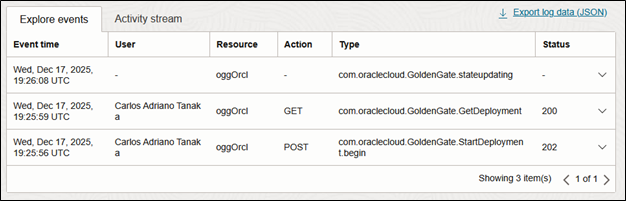
We can leverage OCI Auditing to retrieve audit trails to answer some questions like: Who started/stopped/deleted my deployment? Who removed the connection… and using the OCI Auditing (Observability & Management > Logging > Audit) we can easily find the answers:
Trail Encryption
By default, GoldenGate will use a local wallet to encrypt your trail, but you can leverage it to OCI Vault to achieve better security, in case of a malicious user get access to your trail files he will need to have access to the wallet from the Vault since that wallet couldn’t be exported from it.
In Oracle docs you have a good image that show this architecture:
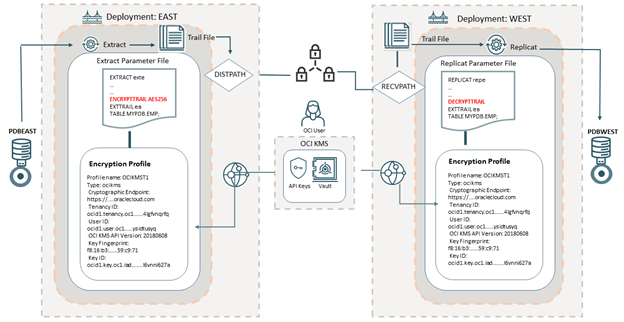
Both source and target deployments must have access to the same vault, if you try to open the trail without the right encryption profile you will find this error:
Logdump 95 >ghdr on

Logdump 96 >detail on

Logdump 97 >open ab000000000.htm

Current log trail file is /mnt/c/Users/tanaka/Downloads/ab000000000

….

2025-12-08 17:05:04  INFO    OGG-25851  Using encryption profile 'LocalWallet'.

Warning: Unable to decrypt with masterkey OGG_DEFAULT_MASTERKEY version 0.

….

Bad compressed block, found length of 3,310 (0x00000cee), RBA 2,021.

If the trail file is encrypted, set to use decryption on using decrypt command and rerun. If the decrypt command is used, wallet file or key name is incorrect, verify the encryption configuration.
If you want, watch this video to better understand how to setup and use Encryption profiles: https://www.youtube.com/watch?v=Yh3ogaOheZE
By combining IAM integration, strict policies, proper encryption, detailed logging, resource locking, and event-triggered alerts, you can significantly enhance the security posture of your OCI GoldenGate deployments.
If you need further details or specific instructions, please let me know.